Setting Up a Kubernetes 3-Node Cluster
The purpose of this guide is to help you set up a Kubernetes cluster using 3 servers. I will try to keep this as provider-independent as possible, so it should not matter whether your machines are in Oracle Cloud, AWS, a home lab, or somewhere else.
For this to work, I will assume you have the following:
- 3 machines running Linux, either x86-64 or ARM64.
- A reliable internet connection.
- A private network between the 3 machines. This can also be a VPN.
- One public entry point that can route traffic to the 3 machines.
- A domain that you can add A records to.
- SSH access to all 3 machines.
What is Kubernetes and Why Use It
Section titled “What is Kubernetes and Why Use It”Kubernetes is an open-source system for automating deployment, scaling, and management of containerized applications.
One of the main reasons to use Kubernetes, or K8s, is high availability. In a sense, you would want to use K8s if you want your users to experience as little interruption as possible when one part of your infrastructure fails.
Kubernetes achieves this by abstracting the actual workers, called Pods, behind stable entry points called Services, while allowing us to have multiple replicas of the same application.
For example, instead of having
User -> Server -> Applicationwe can have
-> Pod 1User -> Service -> Pod 2 -> Pod 3If one of these Pods dies, the Deployment responsible for it can create another Pod, while the Service simply stops routing traffic to the dead one.
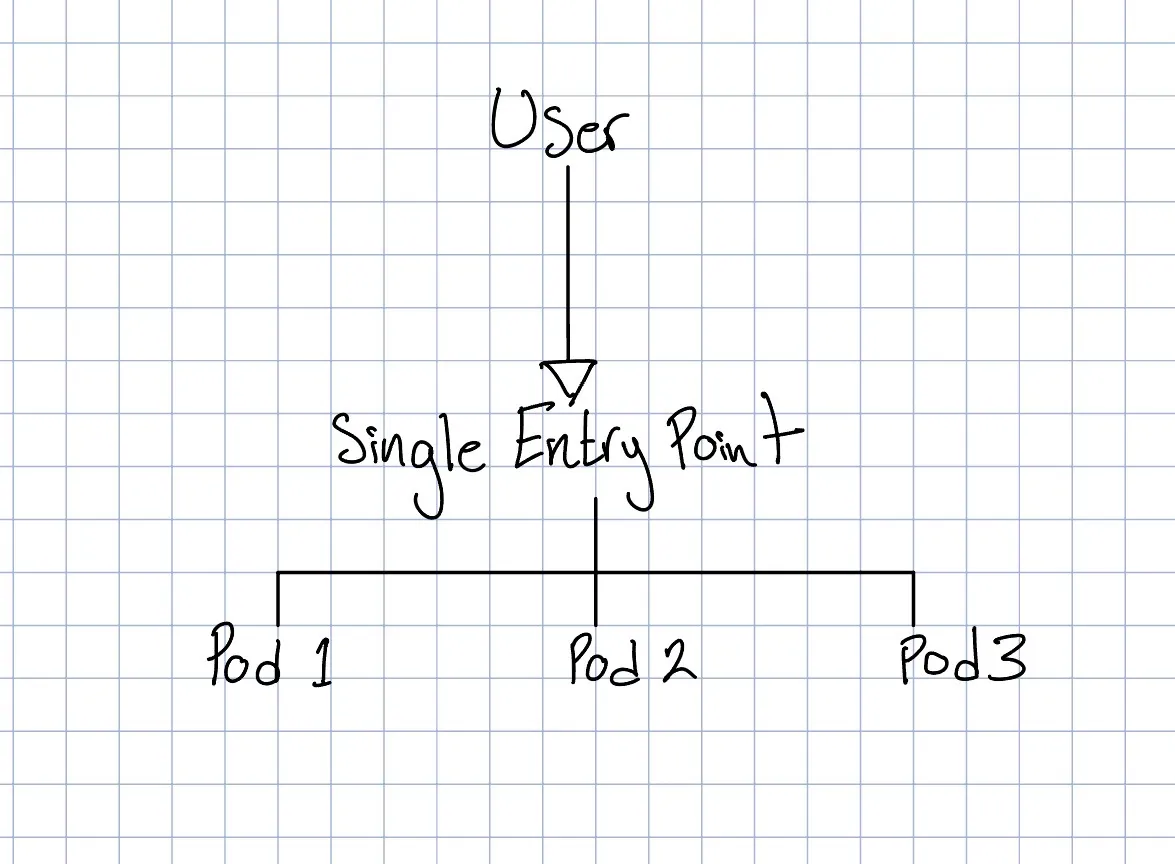
This feature also makes Kubernetes suitable for load balancing, as you can make one entry point that users interact with and then route requests to several Pods that can be running on different machines.
This gives us horizontal scaling.
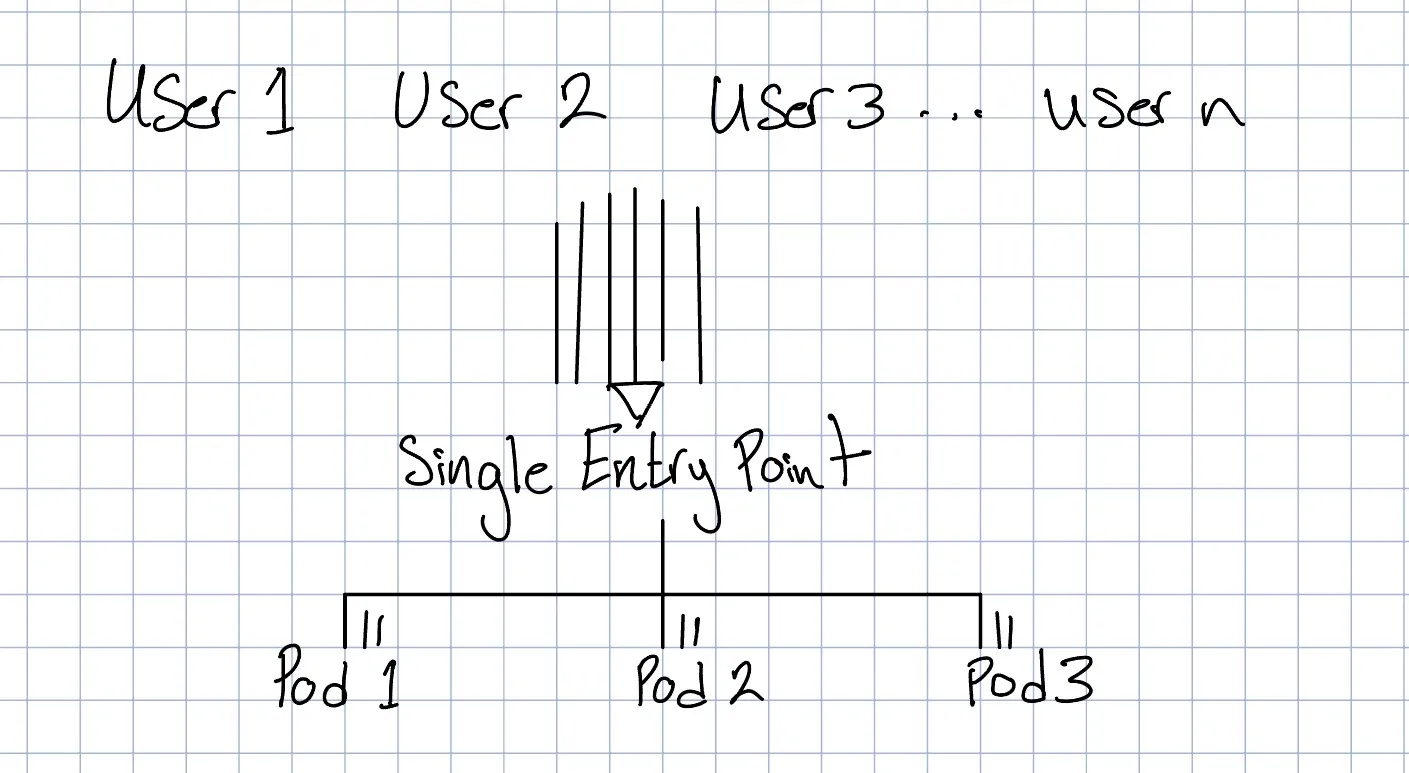
On the other hand, K8s will not magically make your application faster, especially on the single-user level.
After all the routing is done, one request is normally still executed by one Pod on one machine.
Some applications are specifically designed so one task can be broken into several parts and distributed between many machines, but this has to be implemented by the application itself, and they are defintely very rare.
In a sense, Kubernetes primarily helps with throughput, availability, and orchestration rather than magically improving the latency of one request.
First thing you should do is add your SSH key to your machines. This will make your life considerably easier than having to enter a password every time you want to SSH into one of them.
Assuming your public key is located at
~/.ssh/id_ed25519.pubyou can copy it using
ssh-copy-id user@SERVER_IPDo this for all 3 machines.
Afterwards, you should be able to connect using
ssh user@SERVER_IPwithout entering the server’s password.
I would also recommend giving every machine a recognizable hostname.
For the rest of this guide, I will assume our machines are called
node-1node-2node-3You can change the hostname using
sudo hostnamectl set-hostname node-1and similarly for the other two machines. I use Gundam for names, which are cool.
The Private Network
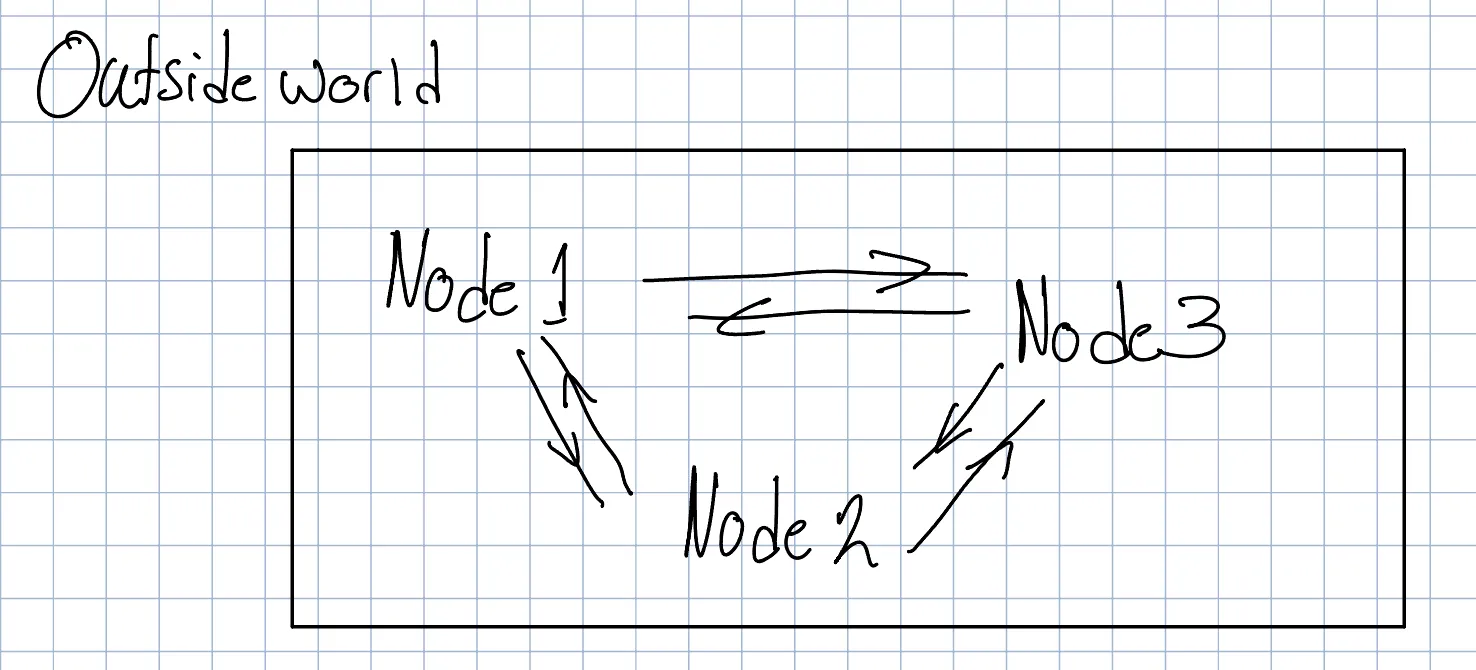
Section titled “The Private Network”The three machines need to be able to communicate with each other over a private network. Please do not use public network for this, you are just creating more trouble than needed.
How you create this network does not really matter. It can be
- A cloud provider VPC/VNet.
- A physical LAN.
- WireGuard.
- Tailscale.
- Another VPN that gives each machine a stable private IP.
For the rest of the guide, I will assume the machines have the following private IPs:
node-1 -> 10.0.0.10node-2 -> 10.0.0.11node-3 -> 10.0.0.12These addresses should preferably stay static.
You should verify that the machines can reach each other.
For example, from node-1
ping 10.0.0.11ping 10.0.0.12and do the same from the other two machines.
Kubernetes uses this private network heavily. Even though users might eventually access the cluster through a public IP, communication between the nodes themselves should generally happen through the private network.
Firewall Rules
Section titled “Firewall Rules”This varies a lot from one machine to another, and probably need a guide on its own. To keep it concise here, You just need to allow this
- TCP 6443
- TCP 2379-2380
- TCP 10250
- UDP 8472
It is possible your machines have more than one firewall, so be careful.
Installing K3s
Section titled “Installing K3s”There are many ways to run Kubernetes.
For this guide I will use K3s.
K3s is a lightweight Kubernetes distribution. You still get the normal Kubernetes API and ecosystem, but a lot of the setup is packaged together for you.
This makes it especially useful for a relatively small cluster like ours.
We are going to make all three machines both
control-plane nodesand
worker nodesThis means all three participate in managing the cluster, and all three can also run applications.
Creating the First Server
Section titled “Creating the First Server”SSH into node-1.
Run
curl -sfL https://get.k3s.io | sudo sh -s - server \ --cluster-init \ --node-ip=10.0.0.10There are two important options here.
--cluster-initmeans this machine is creating a new embedded etcd cluster.
And
--node-ip=10.0.0.10tells K3s that this machine should communicate with the rest of the cluster using its private IP.
Wait a little bit and run
sudo kubectl get nodesYou should see something similar to
NAME STATUS ROLES AGE VERSIONnode-1 Ready control-plane,etcd,master 1m ...At this point, we have Kubernetes running, but only on one machine.
Joining the Other Two Nodes
Section titled “Joining the Other Two Nodes”K3s uses a token to authenticate machines that want to join the cluster.
On node-1, you can get it with
sudo cat /var/lib/rancher/k3s/server/node-tokenNow SSH into node-2 and run
curl -sfL https://get.k3s.io | sudo \ K3S_URL=https://10.0.0.10:6443 \ K3S_TOKEN="YOUR_TOKEN_HERE" \ sh -s - server \ --node-ip=10.0.0.11Then on node-3
curl -sfL https://get.k3s.io | sudo \ K3S_URL=https://10.0.0.10:6443 \ K3S_TOKEN="YOUR_TOKEN_HERE" \ sh -s - server \ --node-ip=10.0.0.12Now run
sudo kubectl get nodes -o wideYou should now see something similar to
NAME STATUS ROLES INTERNAL-IPnode-1 Ready control-plane,etcd,master 10.0.0.10node-2 Ready control-plane,etcd,master 10.0.0.11node-3 Ready control-plane,etcd,master 10.0.0.12If all three say Ready, the basic cluster is running.
Why Three Nodes
Section titled “Why Three Nodes”You might wonder why we bothered with 3 machines instead of 2.
The main reason is etcd.
etcd is the distributed database Kubernetes uses to store the state of the cluster.
For example, information such as
Which Deployments exist?Which Pods should be running?Which Services exist?Which Secrets exist?Which node is running what?is part of the cluster state.
For etcd to safely make decisions, a majority of its members need to agree.
With three nodes, a majority is
2 / 3which means one node can completely die and the other two still have quorum.
With two nodes, the majority is still
2 / 2so losing only one machine means there is no longer a majority.
This is why odd numbers like
357are normally preferred for consensus systems.
For a small cluster, 3 is a very convenient number.
Testing Node Failure
Section titled “Testing Node Failure”Before putting anything important on the cluster, it is worth actually testing what happens when a machine disappears.
First, make sure everything is healthy.
kubectl get nodesThen shut down one of the machines.
sudo shutdown -h nowFrom one of the remaining machines, run
kubectl get nodesAfter a while, you should see something similar to
node-1 Readynode-2 NotReadynode-3 ReadyThe important part is that the cluster itself should still work.
For example,
kubectl get pods -Ashould still succeed.
Turn the machine back on afterwards.
A normal reboot should also not require manually joining the machine again.
K3s runs through systemd in linux, so the service should start automatically when the node
comes back.
Pods, Deployments, and Services
Section titled “Pods, Deployments, and Services”Before exposing anything to the internet, it is useful to understand the three objects you will probably interact with the most.
A Pod is the smallest object Kubernetes schedules onto a node.
It normally contains the actual application container.
For example,
nginx-7d8b49557c-abcdemight be a Pod running nginx.
A Pod exists on exactly one node at a time.
The important thing is that Pods are disposable.
They can die, be deleted, or be recreated somewhere else with a different IP.
Because of this, you normally do not create individual Pods directly.
Deployments
Section titled “Deployments”Instead, for normal stateless applications, you normally create a Deployment.
A Deployment describes the state you want.
For example,
I want 3 nginx Pods.Kubernetes will then keep trying to make reality match that desired state.
Suppose we have
desired replicas = 3actual replicas = 3and one Pod dies.
Now we have
desired replicas = 3actual replicas = 2so the Deployment creates another Pod. It is very declarative in nature.
Services
Section titled “Services”There is still another problem.
Pod IP addresses are temporary.
We therefore usually put a Service in front of the Pods.
A Service gives us a stable internal entry point.
Conceptually,
Service | ----------------- | | | Pod 1 Pod 2 Pod 3The application talking to the Service does not need to care which individual Pod currently exists or which machine it is running on.
A Small Test Deployment
Section titled “A Small Test Deployment”We can test this by running nginx.
Create a file called
nginx.yamlwith
apiVersion: apps/v1kind: Deploymentmetadata:  name: nginxspec:  replicas: 3
  selector:    matchLabels:      app: nginx
  template:    metadata:      labels:        app: nginx
    spec:      containers:        - name: nginx          image: nginx:stable
          ports:            - containerPort: 80
---apiVersion: v1kind: Servicemetadata:  name: nginx
spec:  type: ClusterIP
  selector:    app: nginx
  ports:    - port: 80      targetPort: 80
Apply it using
kubectl apply -f nginx.yamlThen run
kubectl get pods -o wideYou should see three nginx Pods.
Ingress
Section titled “Ingress”A Service gives us stable routing inside the cluster.
We still need a way for someone to type
https://example.comand reach the correct Service.
This is where Ingress comes in.
An Ingress is essentially a set of HTTP routing rules.
For example,
example.com ->frontend Serviceand
api.example.com ->backend ServiceAn Ingress itself is only configuration.
Something still needs to actually receive the HTTP connection and perform the routing.
That something is called an Ingress Controller.
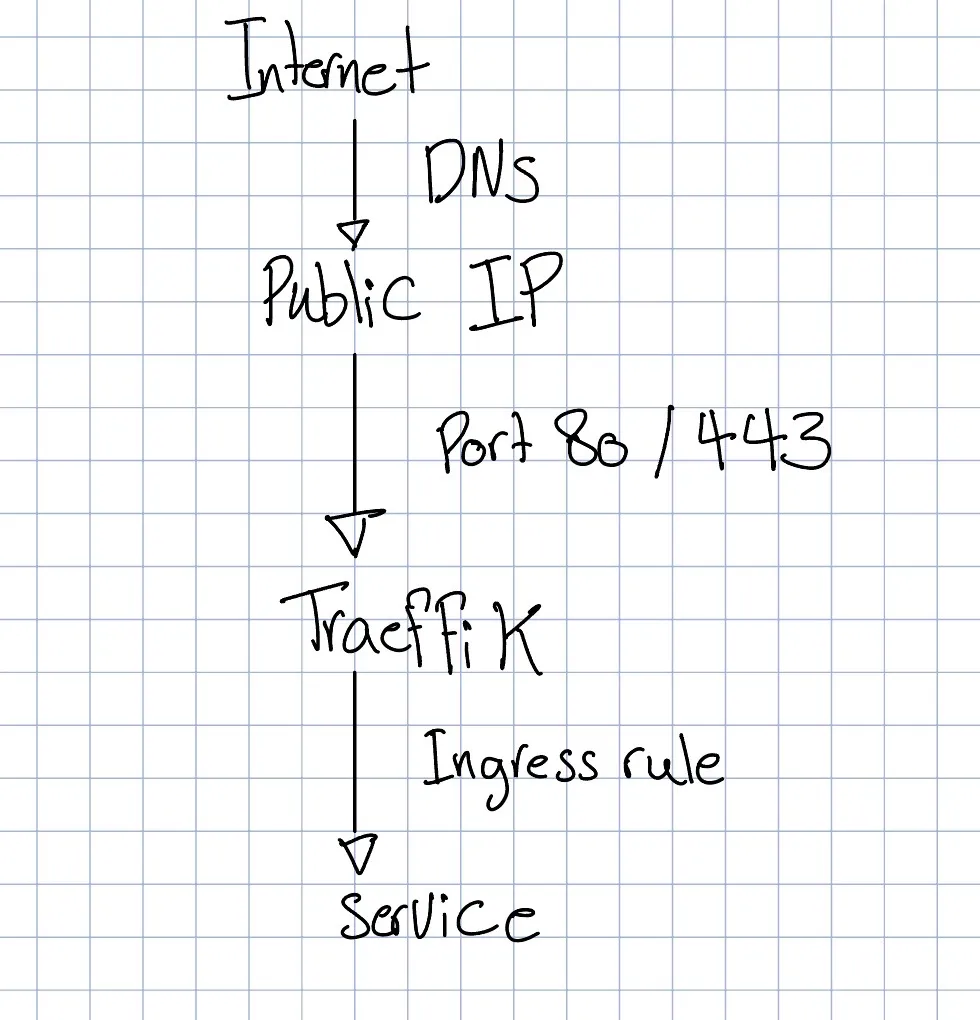
K3s comes with Traefik by default, so we will use it.
Conceptually, this is what is going on:
Making Traefik Highly Available
Section titled “Making Traefik Highly Available”Since we have three nodes, it makes sense to run multiple Traefik Pods as well.
We ideally want one Traefik Pod on each node instead of making one Traefik Pod a single point of failure. Otherwise, everything that we did is for nothing, essentially since if the node running Traefik dies, it will be over.
You can run this. I am not gonna explain what it does, you shoul check out K8 documentation for it, and this is not it.
cat <<'EOF' > traefik-config.yamlapiVersion: helm.cattle.io/v1kind: HelmChartConfigmetadata:  name: traefik  namespace: kube-system
spec:  valuesContent: |-    deployment:      replicas: 3      updateStrategy:        type: RollingUpdate        rollingUpdate:          maxUnavailable: 1          maxSurge: 0
    affinity:      podAntiAffinity:        requiredDuringSchedulingIgnoredDuringExecution:          - labelSelector:              matchLabels:                app.kubernetes.io/name: traefik            topologyKey: kubernetes.io/hostname
    topologySpreadConstraints:      - maxSkew: 1        topologyKey: kubernetes.io/hostname        whenUnsatisfiable: DoNotSchedule        labelSelector:          matchLabels:            app.kubernetes.io/name: traefikEOF
Apply it with
kubectl apply -f traefik-config.yamlThen check
kubectl get pods -n kube-system -o wide | grep traefikYou should now see one Traefik Pod on each node.
Connecting the Cluster to the Internet
Section titled “Connecting the Cluster to the Internet”At this point we need something outside Kubernetes that gives the cluster one public entry point.
I intentionally will not make this section specific to one cloud provider.
You can use
- A cloud network load balancer.
- HAProxy.
- A floating IP setup.
- A hardware load balancer.
- Another L4 load balancing solution.
For the rest of this guide I will assume you have one public IPv4 address that acts as a network load balander.
For example,
203.0.113.10This will server as the primary endpoint your users interact with.
The load balancer should accept
TCP 80TCP 443and send those connections to your three Kubernetes nodes.
Conceptually,
The backend nodes should normally be
10.0.0.10:8010.0.0.11:8010.0.0.12:80for HTTP and
10.0.0.10:44310.0.0.11:44310.0.0.12:443for HTTPS.
Once you have a public IP, you can point your domain to it.
Suppose our public address is
203.0.113.10and our domain is
example.comCreate an A record such as
test.example.com -> 203.0.113.10You can verify it with
dig +short test.example.comwhich should eventually return
203.0.113.10Keep in mind that DNS results are cached.
This includes negative results.
If you query
test.example.combefore the record exists, a recursive DNS server might cache the answer that the hostname does not exist.
Even after you create the record, that resolver can continue returning the old answer until its negative TTL expires.
A useful test is
dig +short test.example.comcompared with
dig @1.1.1.1 +short test.example.comIf Cloudflare returns the correct address while your normal resolver returns nothing, you probably have a DNS caching problem rather than a Kubernetes problem.
Installing cert-manager
Section titled “Installing cert-manager”We now have HTTP routing, but public services should normally use HTTPS.
Instead of manually obtaining and renewing certificates for every application, we can use cert-manager.
cert-manager runs inside Kubernetes and can automatically obtain certificates from certificate authorities such as Let’s Encrypt.
Install cert-manager using the official installation instructions for the version you want to run.
After installation, verify it with
kubectl get pods -n cert-managerYou should normally see Pods for
cert-managercert-manager-cainjectorcert-manager-webhookand all of them should be running.
Creating a Let’s Encrypt ClusterIssuer
Section titled “Creating a Let’s Encrypt ClusterIssuer”We need to tell cert-manager where it should request certificates from.
Create
letsencrypt-prod.yamlwith
apiVersion: cert-manager.io/v1kind: ClusterIssuer
metadata:  name: letsencrypt-prod
spec:  acme:    email: YOUR_EMAIL@example.com
    server: https://acme-v02.api.letsencrypt.org/directory
    privateKeySecretRef:      name: letsencrypt-prod
    solvers:      - http01:          ingress:            ingressClassName: traefik
Replace the email address.
Then apply it.
kubectl apply -f letsencrypt-prod.yamlCheck it with
kubectl get clusterissuerEventually you want something like
NAME READYletsencrypt-prod TrueExposing nginx Over HTTPS
Section titled “Exposing nginx Over HTTPS”We can now expose our nginx test application.
Assume you created
test.example.com -> YOUR_PUBLIC_IPin DNS.
Create
nginx-ingress.yamlwith
apiVersion: networking.k8s.io/v1kind: Ingress
metadata:  name: nginx
  annotations:    cert-manager.io/cluster-issuer: letsencrypt-prod
spec:  ingressClassName: traefik
  tls:    - hosts:        - test.example.com
      secretName: nginx-tls
  rules:    - host: test.example.com
      http:        paths:          - path: /            pathType: Prefix
            backend:              service:                name: nginx
                port:                  number: 80
Apply it.
kubectl apply -f nginx-ingress.yamlNow check the certificate.
kubectl get certificateYou might initially see
READYFalsebecause cert-manager still needs to complete the ACME challenge.
You can watch it live with
kubectl get certificate -wEventually you want
nginx-tls TrueThen
curl -I https://test.example.comshould give you a valid HTTPS response.
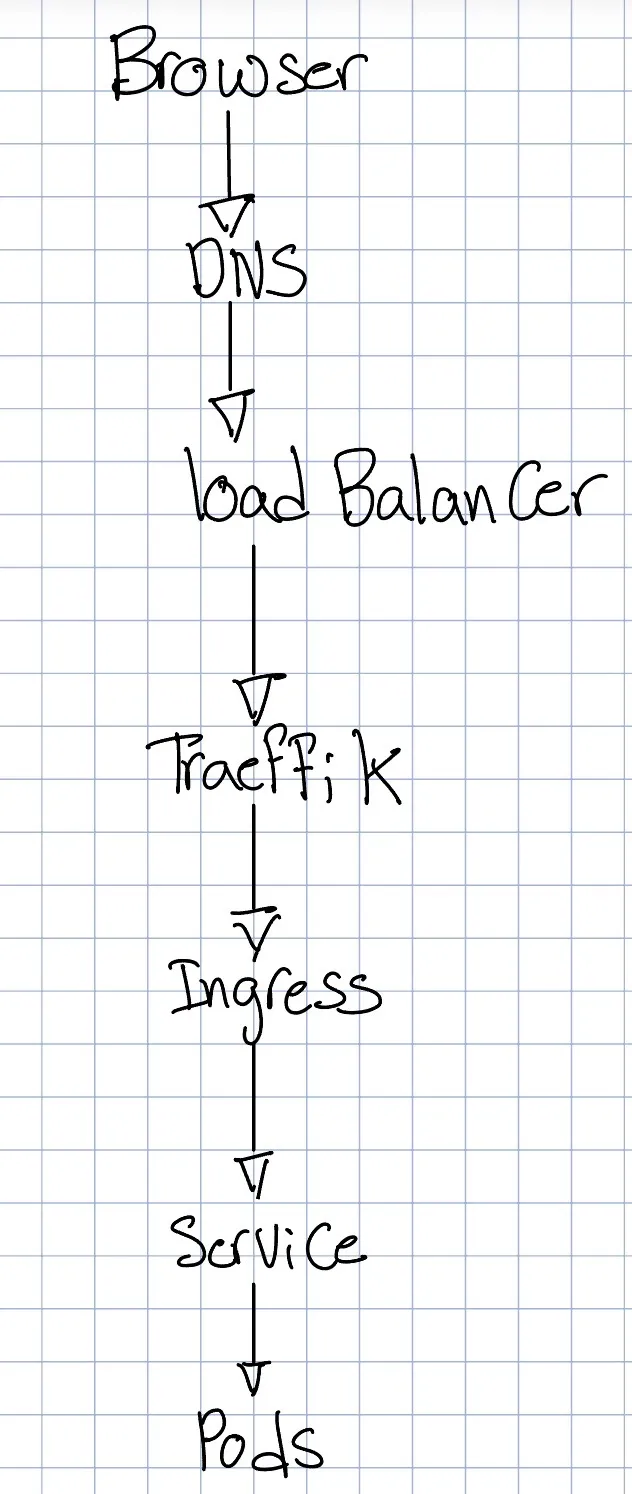
At this point, the full request path is
Debugging Certificate Problems
Section titled “Debugging Certificate Problems”Certificate problems are one of the places where DNS issues show up very clearly.
If a certificate does not become ready, start with
kubectl get certificateThen
kubectl describe certificate nginx-tlscert-manager normally creates several resources during issuance.
You can inspect them with
kubectl get certificaterequest,order,challengeIf the challenge is still pending, describe it.
kubectl describe challenge CHALLENGE_NAMEOne common error looks like
Waiting for HTTP-01 challenge propagation:lookup test.example.com on 10.43.0.10:53: no such host10.43.0.10 is normally the Kubernetes DNS Service provided by CoreDNS.
In this situation, compare
dig @1.1.1.1 +short test.example.comwith
dig @10.43.0.10 +short test.example.comIf the first one returns the public IP but the second one returns nothing, the problem is internal DNS resolution rather than cert-manager itself.
What Happens When a Node Dies
Section titled “What Happens When a Node Dies”At this point, it is worth understanding exactly what Kubernetes does and does not give us.
Suppose an application has
replicas: 3and we have one replica on every node.
If one node disappears, we still have two running replicas.
The Service stops routing traffic to the dead Pod, so users can continue using the application through the remaining Pods.
Kubernetes will eventually try to recreate the missing Pod on one of the surviving nodes.
Now suppose the application only has
replicas: 1and that Pod happens to be on the machine that dies.
Kubernetes can create another Pod on one of the surviving nodes, but there will normally be some interruption while Kubernetes determines that the node is gone and creates the replacement.
This is why simply using Kubernetes does not automatically mean every application has zero downtime.
Your application also has to be designed and deployed in a way that allows it.
Making Replicas Actually Spread Across Nodes
Section titled “Making Replicas Actually Spread Across Nodes”Suppose you have three replicas.
It is possible for Kubernetes to schedule them as
node-1 -> Pod Anode-1 -> Pod Bnode-2 -> Pod Cnode-3 -> nothingdepending on the scheduling conditions.
If the goal is specifically to survive the loss of any one machine, we probably want
node-1 -> Pod Anode-2 -> Pod Bnode-3 -> Pod COne way to strongly enforce that is Pod anti-affinity.
For example,
affinity:  podAntiAffinity:    requiredDuringSchedulingIgnoredDuringExecution:      - labelSelector:          matchLabels:            app: my-app
        topologyKey: kubernetes.io/hostname
This means
Do not place two Pods with this label on the same hostname.For three replicas and three nodes, this results in one Pod per machine as long as all three machines are available.
Useful Commands
Section titled “Useful Commands”These are commands I ended up using constantly while setting everything up.
See all nodes:
kubectl get nodes -o wideSee all Pods:
kubectl get pods -A -o wideSee Services:
kubectl get svc -ASee Ingresses:
kubectl get ingress -ASee what happened to a resource:
kubectl describe pod POD_NAME -n NAMESPACERead logs:
kubectl logs POD_NAME -n NAMESPACERead logs through a Deployment:
kubectl logs deployment/DEPLOYMENT_NAME -n NAMESPACEFollow logs:
kubectl logs -f deployment/DEPLOYMENT_NAME -n NAMESPACERestart a Deployment:
kubectl rollout restart deployment DEPLOYMENT_NAME -n NAMESPACEWait for a rollout:
kubectl rollout status deployment DEPLOYMENT_NAME -n NAMESPACESee recent events:
kubectl get events -A --sort-by='.lastTimestamp'Check certificate state:
kubectl get certificate -ACheck ACME challenges:
kubectl get challenge -AThe Final Architecture
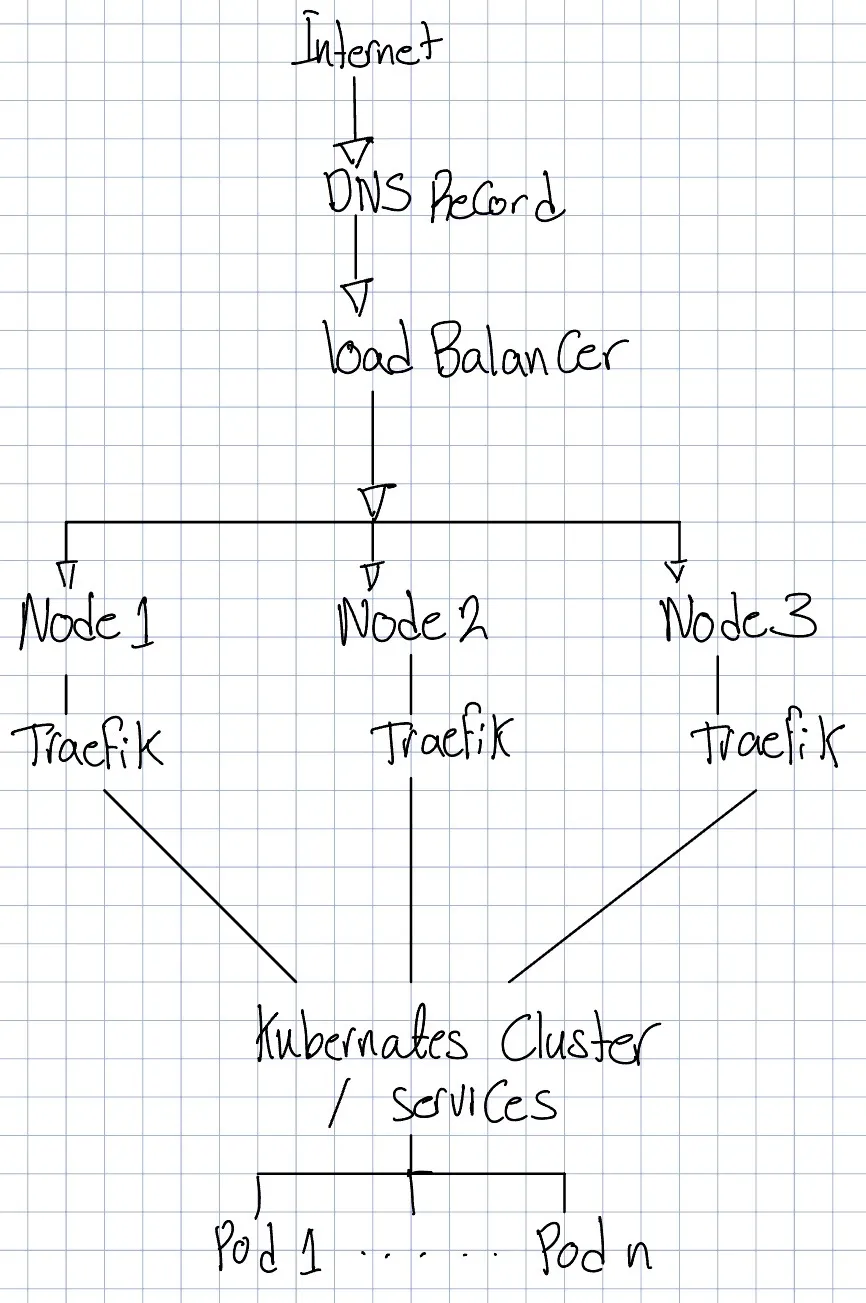
Section titled “The Final Architecture”At the end, our setup looks roughly like this:
Conclusion
Section titled “Conclusion”At this point, we have
3 Kubernetes nodes3 control-plane members3 etcd membersA private networkA public load balancerTraefikIngress routingDNSAutomatic HTTPS certificatesand we can deploy an application by essentially defining
Deployment |Service |Ingressrather than manually configuring every individual server.
The nice part is that our application no longer really cares which physical machine is currently running it. It is kind of surprising how something as basic and primative as this can be abstracted!
Congrats
Section titled “Congrats”At this point, I will assume that not only did it work, but also that you have a basic understanding of K8.
I myself still a huge newbie, so it is not as thorough as other guides might be, but that might be an advantage itself. Hope you had fun!